What’s Inside a .pbit File?
A Power BI template might seem like an opaque file only Power BI Desktop can read. It isn’t. A .pbit file is a renamed zip archive containing your report’s complete definition as readable files: the data model schema (every table, measure, and relationship as JSON), the report layout, metadata, and embedded resources. The only thing missing is the data.
That’s worth seeing for yourself at least once, because it changes how you think about your reports and it explains how an entire category of tooling works. Here’s the tour.
The rename trick
- Copy the .pbit — work on the copy, never the original.
- Rename the extension from
.pbitto.zip. - Extract it like any other archive.
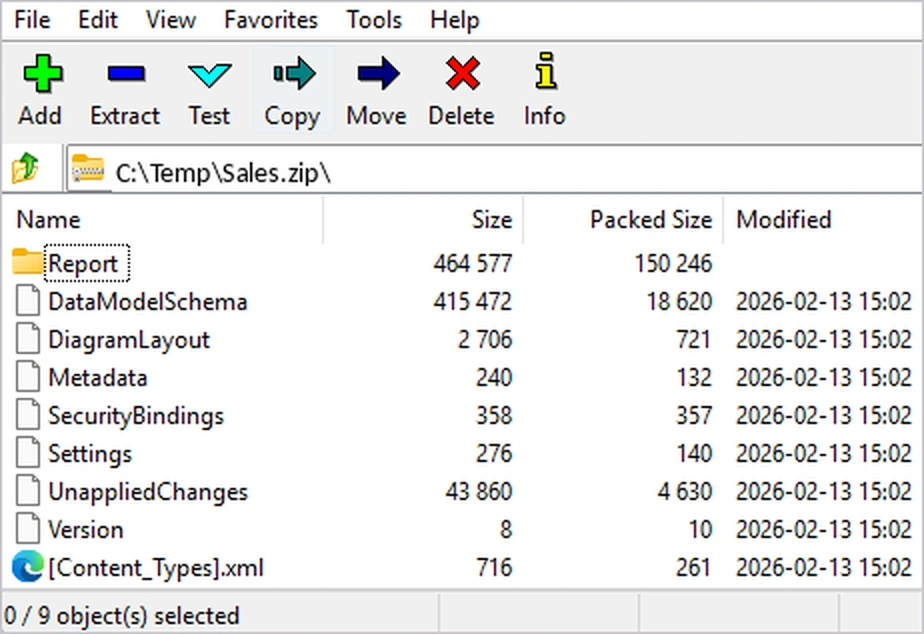
One ground rule before you start poking around: this trick is for inspection. Hand-editing the extracted files and re-zipping them is an excellent way to produce a file Power BI refuses to open. You can look all you want but you should always make actual changes in Power BI Desktop. (A second practical note: several of the files are UTF-16 encoded JSON, so if one looks like garbled spacing in your editor, switch the encoding rather than assuming it’s binary.)
A tour of the contents
The exact file list varies slightly by Power BI Desktop version, but the cast of characters is stable.
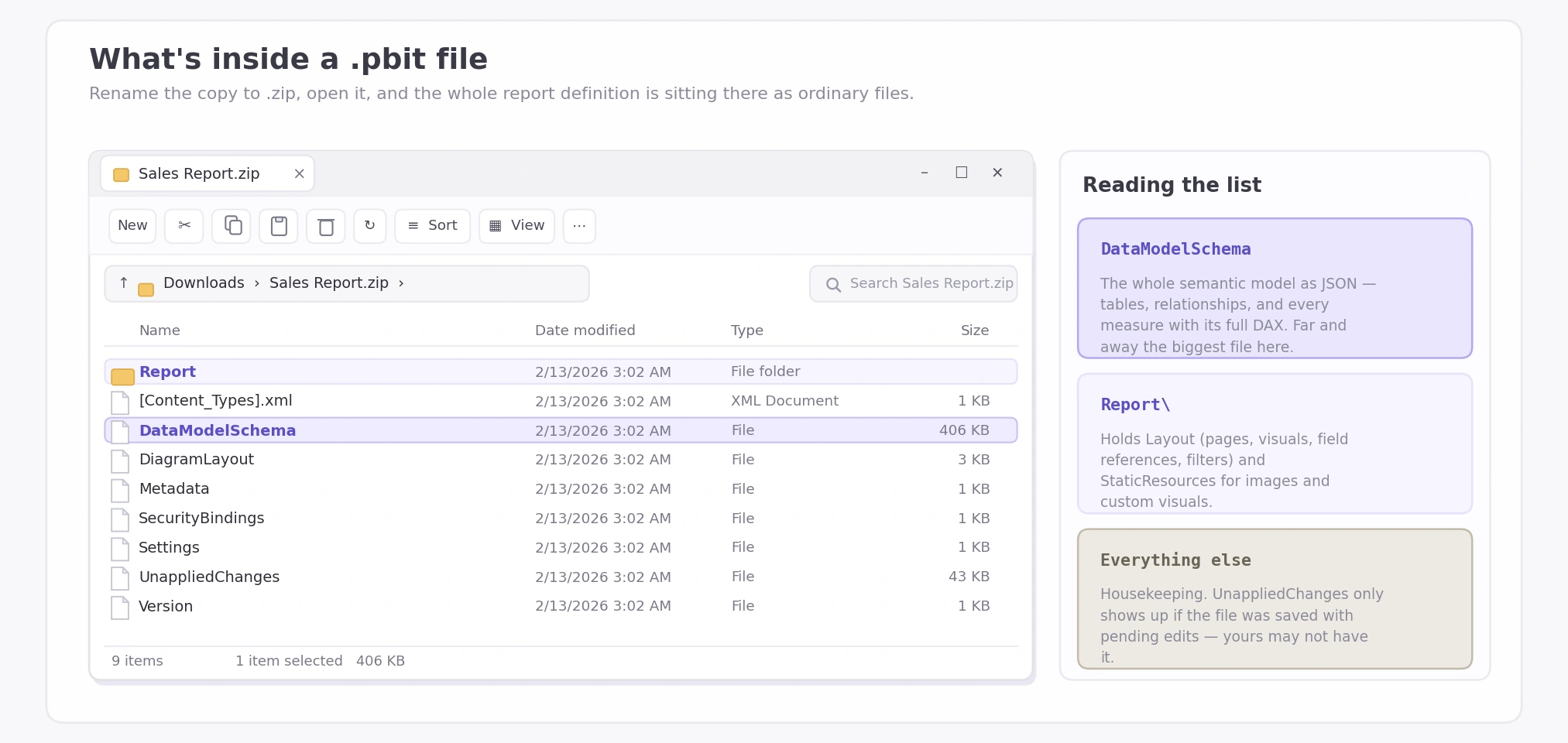
DataModelSchema — the star of the show
This is your entire semantic model as structured JSON: every table and its columns, every relationship with its cardinality and direction, and most interestingly every DAX measure, full definition included. Open it in a text editor and search for a measure name; there it is, expression and all, no Power BI required.
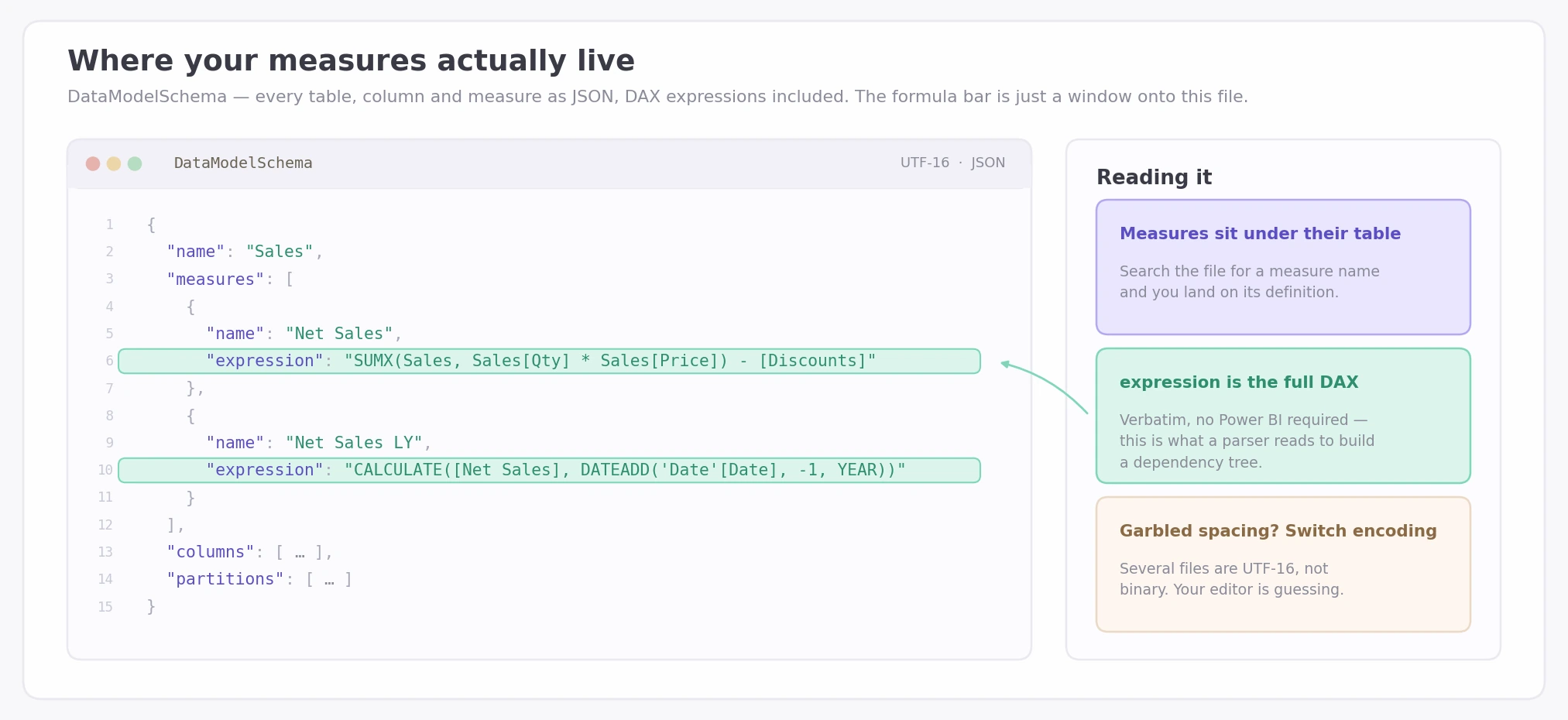
If you’ve ever wondered where your measures “live,” this is the answer. The formula bar in Desktop is just a window onto this file.
Report/Layout — the report definition
The Layout file (inside the Report folder) describes every page and every visual: the position, type and formatting as well as which fields and measures each visual uses. This is also where the sneakier references live: filters, conditional formatting rules, tooltip configuration. It’s the file-level proof of a point I’ve made before, that a measure can be absent from every canvas and still be referenced in visual config, which is why measures look unused but aren’t.
Metadata, Settings, Version — and the rest
Small housekeeping files: the template description you typed when saving, version numbers, and report settings. Rarely interesting, occasionally useful for confirming which Desktop version produced a file.
Three more will show up in the listing and none of them need your attention. [Content_Types].xml is standard zip-package plumbing rather than anything Power BI specific. SecurityBindings is small and internal; treat it as opaque. UnappliedChanges only appears when the template was saved with edits still pending, so your archive may not contain it at all — if it’s missing, nothing is wrong.
Embedded resources
Images and custom visuals ship inside the archive under the report’s static resources. This is the answer to a common surprise: a “template with no data” that’s still several megabytes is almost always carrying a large page background image or a few custom visuals. The data is gone; the wallpaper isn’t.
Why this matters
Here’s the payoff, and it’s bigger than curiosity: because the definition is structured text, software can read your entire model without ever opening Power BI.
Every capability this blog keeps coming back to works this way. Parsing measures and their references out of the schema is how a dependency tree gets built. Cross-checking the schema against the Layout file helps to determine which measures exist versus which ones visuals and formatting actually use. This drives the detection of unused measures. Extracting tables, relationships, and definitions into a readable document is how documentation gets auto-generated. DAX Prism does all three by reading exactly the files you just extracted — which is also why analysis tools often ask for a .pbit: it’s the complete structure of your report with none of the data, small enough to hand over and free of anything sensitive in the rows.
Once you’ve seen the files, none of this is magic. It’s parsing.
What about .pbix?
The same rename trick works on a .pbix — with one big difference. Alongside the definition files sits the cached data as a compressed binary blob, which is unreadable and usually accounts for nearly all of the file size. Structure-wise you learn nothing new; it’s the .pbit contents plus a very large opaque lump. For when to use which format, see .pbit vs .pbix: what’s the difference?
And if inspecting the schema leaves you wanting a readable, shareable description of your model rather than raw JSON, that’s just documentation, and there are better ways to produce it than reading the archive by hand.
Frequently asked questions
Can I edit the files inside a .pbit and re-zip it? Technically sometimes, practically don’t. The format is undocumented, the encoding is finicky, and a small mistake produces a file Power BI can’t open. Inspect the extracted files freely, but make changes in Power BI Desktop.
Is it safe to unzip a .pbit? Yes, as long as you work on a copy. Extracting is read-only with respect to the original file and the risk only appears if you modify and repackage it.
Where exactly are my measures stored? In the DataModelSchema file, as JSON. Each measure appears under its table with its name and full DAX expression. Search the file for the measure name and you’ll land on its definition.
Can the Layout file reveal hidden pages and tooltips? Yes. Every page is in the Layout definition regardless of visibility, including hidden pages and tooltip pages, along with every visual’s field references, filters, and formatting rules.
Is this the same as the .pbip project format’s text files? Same spirit, different format. A .pbip stores the definition as a folder of text files designed for Git; a .pbit stores it as JSON inside a zip designed for templating. Both prove the same point: your report is structured text underneath.