.pbit vs .pbix: What’s the Difference?
The short answer: a .pbix file is a complete Power BI report. It contains the visuals, the data model, the queries, and the loaded data. A .pbit file is a template: the same report with the data stripped out. Everything else about the two formats follows from that one difference.
The rest of this post covers what that means in practice. What each file actually contains, when a template beats a full report, how to convert between them, and where the newer .pbip project format fits (spoiler: it’s neither, and it solves a different problem).
What’s inside each format
Both formats carry the full definition of your report:
- Report layout — pages, visuals, formatting, bookmarks.
- Data model — tables, columns, relationships, and every DAX measure.
- Power Query logic — the M code that connects to sources and transforms data.
- Settings — parameters, RLS role definitions, metadata.
The .pbix adds one more thing: the cached data itself, the actual rows loaded into the model. The .pbit omits it.
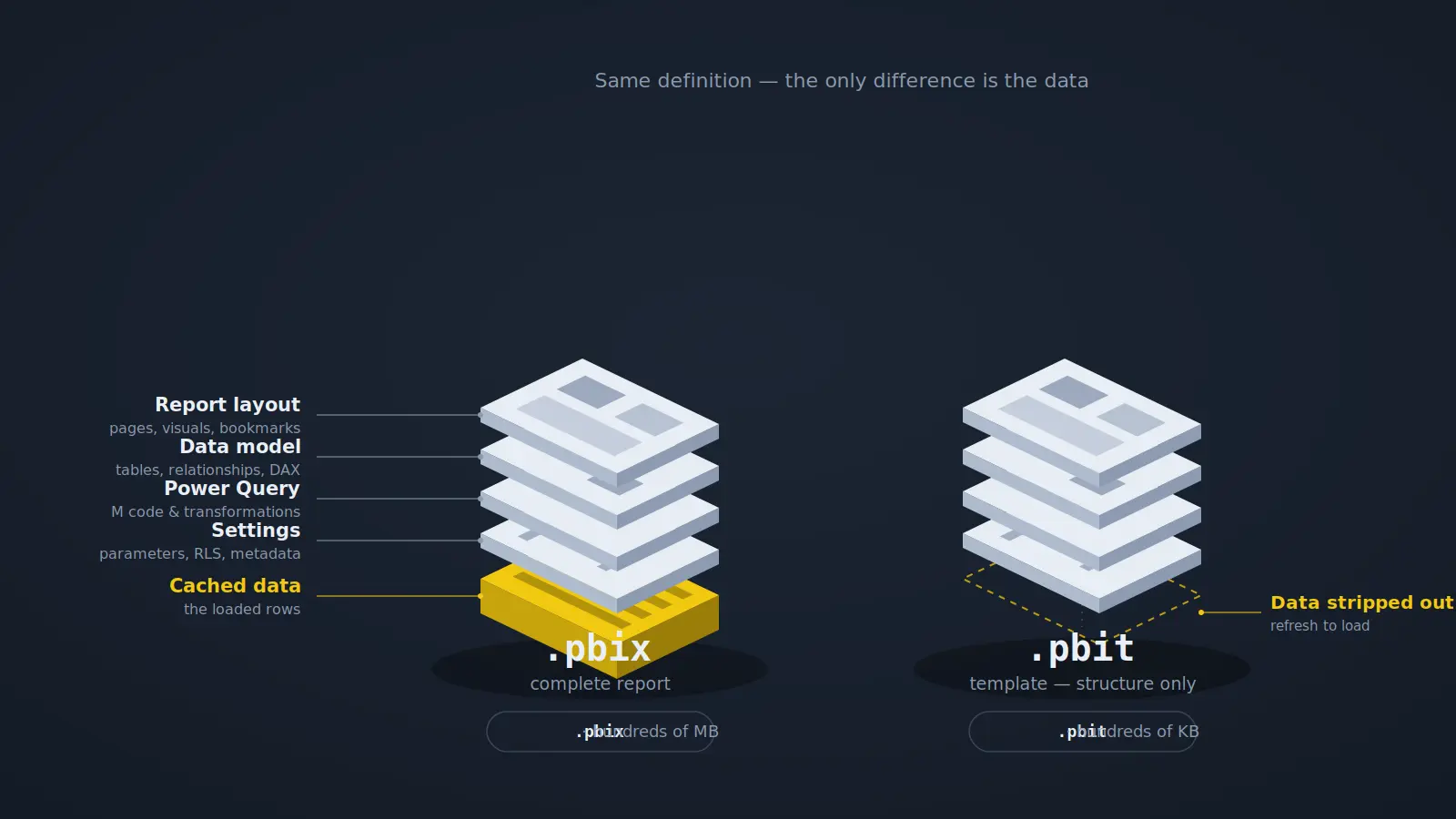
That single omission drives the most visible difference between the formats: size. A .pbix carrying a few years of transactions can run hundreds of megabytes or more; the .pbit of the same report is often a few hundred kilobytes, because a report’s definition is tiny compared to its data. It also drives the behavioral difference: open a .pbix and you’re looking at data immediately; open a .pbit and Power BI prompts you to supply parameter values and refresh, because there’s no data to show yet.
When to use .pbix
Almost always. The .pbix is the working format. It’s what you edit day to day, what you publish to the Power BI Service, and what you send when the recipient should see the report with its numbers. If you’re not sure which format you need, you need .pbix.
When to use .pbit
A template earns its place in three situations:
- Stamping out consistent reports. Build the model, measures, and layout once. Save as .pbit. Every new report starts from that template instead of from scratch. Teams use this to standardize structure across departments or clients — same design, different data.
- Sharing structure without sharing data. A .pbit lets someone see exactly how your report is built. A .pbit has the model, the DAX, and the queries but without receiving a single row of what may be sensitive data. It’s also the practical answer when the .pbix is too large to email.
- Parameterized setup. If the report uses parameters (a server name, a client ID, a date range), opening the .pbit prompts for values before loading. One template can cleanly produce many differently-configured reports.
A useful mental model: .pbix is a document, .pbit is a rubber stamp.
How to create and convert
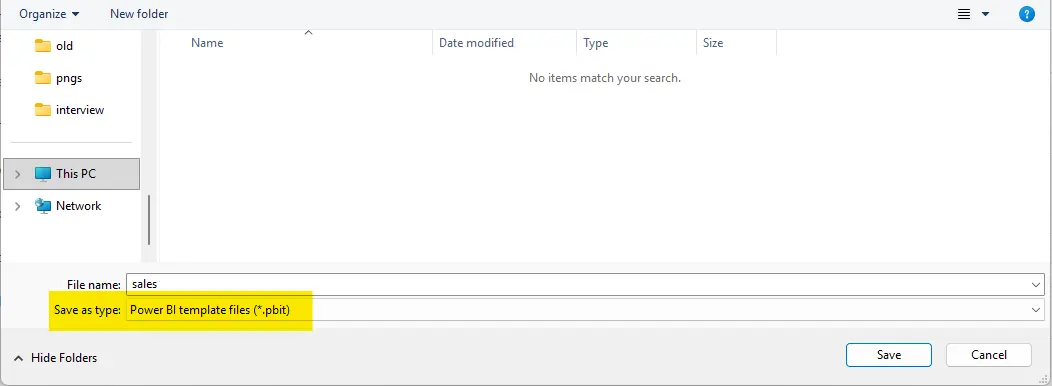
To create a .pbit: in Power BI Desktop, File → Save As, and choose Power BI template (.pbit) as the file type. Desktop strips the data and prompts you for a template description. Your original .pbix is untouched.
To go the other way: just open the .pbit. Power BI Desktop prompts for any parameters, loads the data, and you’re now working in an untitled report — save it and you have a fresh .pbix. There’s no separate conversion step; a template becomes a .pbix the moment it’s opened and saved.
One caveat worth knowing: “no data” means no cached model data. Embedded images, custom visuals, and the report definition itself still live in the .pbit, which is why a template occasionally isn’t as tiny as expected.
And .pbip is neither
A third format shows up in this conversation and regularly gets confused with .pbit: the Power BI Project (.pbip). Despite the similar name, it isn’t a template. Saving as .pbip breaks your report and model into a folder of plain text files, which exists for one purpose: real version control with Git. A different problem solved by a different tool. If that’s the problem you have, see how to version-control Power BI documentation.
The one-line decision rule: working or publishing → .pbix; reusing structure or sharing without data → .pbit; tracking history in Git → .pbip.
Whichever format you’re holding, the definition inside it, meaning the model, the measures, the relationships, is the part worth understanding and documenting. That’s true whether it arrived with data or without; see how to document a Power BI data model for the full process.
Frequently asked questions
Does a .pbit file contain any data? No model data — the cached rows are stripped out when the template is saved. It does still contain the report definition, embedded images, and custom visuals, which is why a .pbit isn’t always tiny.
Can you convert a .pbit back to a .pbix? Yes, trivially: open the .pbit in Power BI Desktop, supply any parameter values, let it refresh, and save. The result is a normal .pbix.
Why is my .pbit file still large? Usually embedded images or custom visuals, which are part of the report definition and aren’t removed with the data. Large background images on report pages are the most common culprit.
Is .pbit the same as .pbip? No. A .pbit is a template — a report definition without data, for reuse. A .pbip is a project format that stores the report as text files for Git version control. The similar names are the only thing they share.
Can you open a .pbit without access to the data source? You can open it and inspect everything — the model, measures, queries, and layout — but the visuals will be empty until you can refresh against the source. That’s often exactly the point when sharing structure without data.