How to Version-Control Power BI Documentation
Every Power BI developer eventually meets a folder containing Sales_v2_final.pbix, Sales_v2_final_ACTUAL.pbix, and Sales_v2_final_ACTUAL_use_this_one.pbix. Nobody knows which one is really current, what changed between them, or which version was live when the numbers were right. The model has no history, and neither does its documentation, which means the docs and the model drift apart without a way to tell how.
Version control fixes both problems at once. This guide covers the two practical options: a disciplined date-suffix archive, and Power BI’s project format (.pbip) with GitHub. One takes five minutes to adopt, the other gives you real history, but both beat what most teams have, which is next to nothing.
Why version control is hard in Power BI
The obstacle is the file format. A .pbix file is compressed binary. Git can store it, but it can’t read it. Commit two versions and the diff says “binary file changed” with no indication of whether you renamed a measure or rebuilt the entire model. Merging multiple changes is effectively impossible. That dead end is why many Power BI teams never adopt source control at all, and why the two workable options both route around the binary problem. The first by embracing simple copies, one by changing the file format entirely.
Option A: Date-suffix archiving
The simplest system that actually works: before any meaningful change, copy the file into an archive folder with the date appended.
Sales/
├── Sales.pbix              ← current, the only file you edit
├── docs/
│   └── model-documentation.md
└── archive/
    ├── Sales_2026-06-12.pbix
    ├── Sales_2026-06-27.pbix
    └── changelog.md
Three rules make it reliable:
- One live file. The current version has no suffix and lives at the top. Everything in
archive/is frozen. Its never edited, only restored from. - ISO dates, always.
_2026-07-03, not_finalor_v2. Dates sort correctly and never lie about order. - A changelog next to the archive. One line per snapshot: date, what changed, why. This is the piece most people skip, and it’s the piece that turns a pile of copies into an actual history.
The honest trade-offs. In its favor: zero setup, no new tools, works on any shared drive, and everyone on the team understands it instantly. Against it: you can’t diff two versions — the changelog only knows what someone remembered to write down; it depends entirely on discipline; and the folder grows forever. Date-suffixing is a backup strategy with a memory, not true version control. For a solo developer on a stable report, that’s often enough.
Option B: .pbip project files + GitHub
The real solution is to stop saving a binary. Power BI Desktop can save your work as a Power BI Project (.pbip). Note the format: it’s .pbip, not .pbit, which is the template format. Instead of one opaque file, you get a folder of text files: the semantic model (measures, tables, relationships) and the report layout, each stored as human-readable definitions.
Sales/
├── Sales.pbip
├── Sales.SemanticModel/
├── Sales.Report/
├── docs/
│   └── model-documentation.md
└── .gitignore
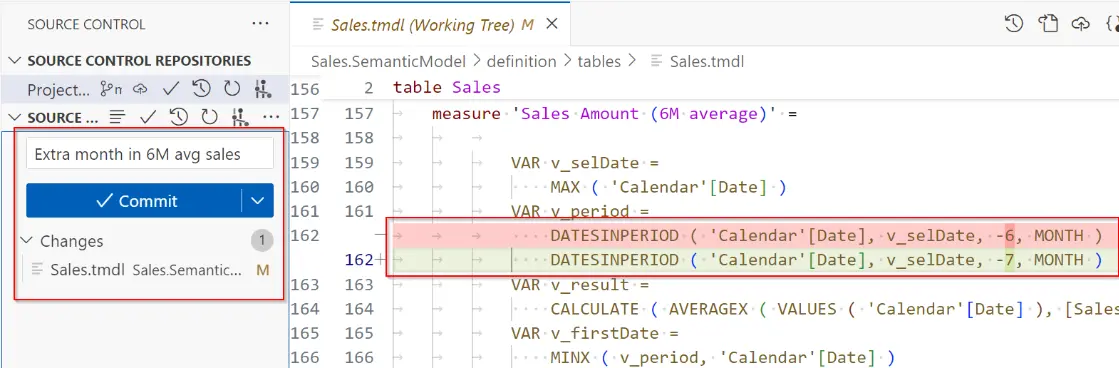
Because everything is text, Git works the way it does for code. A commit history shows every change; a diff shows exactly what changed. In this example, “measure Sales Amount was modified, the v_period Variable was adjusted from 6 months to 7 months.
Getting started takes about thirty minutes:
- Enable the feature. In Power BI Desktop: File → Options → Preview features → check “Power BI Project (.pbip) save option.” (It’s still officially a preview feature, but its stable and widely used. Flag it to your team.)
- Save As → .pbip into a fresh folder.
- Initialize a Git repo in that folder and push it to GitHub. Power BI generates a
.gitignorethat excludes the data cache — keep it, or every save will look like a change even when nothing changed. - Commit on every meaningful save, with a message saying what changed.
The honest trade-offs. In its favor: complete change history, meaningful differences, safe experimentation on branches, pull-request review for teams, and instant rollback. Against it: a Git learning curve if your team hasn’t used it, the preview-feature caveat, and the fact that .pbip files are edited in Power BI Desktop — browser editing in the Service doesn’t apply. None of this requires Fabric or Premium; Desktop, Git, and a free GitHub account are enough.
Which option should you use?
| Date-suffix archive | .pbip + GitHub | |
|---|---|---|
| Setup | None | ~30 minutes once |
| See what changed | Only what the changelog says | Exact diff, per measure |
| Rollback | Restore a copy | git revert, precise |
| Team collaboration | Weak (file locking, overwrites) | Strong (branches, PRs) |
| Learning curve | None | Git basics |
| Best for | Solo dev, stable report | Teams, or any model you’d hate to lose |
A reasonable path: start with the archive folder today, it costs nothing, and move to .pbip the first time you find yourself wondering what actually changed between two versions. That question is the one the archive can’t answer.
Don’t forget the documentation itself
Whichever option you choose, your documentation belongs in the same system as the model. You need a docs/ folder alongside the file or inside the repo, stored as markdown. That enables the single habit that keeps docs alive: update the documentation in the same commit (or the same archive snapshot) as the model change. When docs and model travel together, a stale doc is visible as a bug. If the model changed and the docs didn’t something is wrong.
Text-based docs also make the automated parts cheap to keep current. If your documentation is generated; inventories, measure definitions, dependency trees you can regenerate it after each model change and commit the result. DAX Prism produces its documentation as text for exactly this reason: re-run it, commit the diff, and the docs history tracks the model history. For what that documentation should contain in the first place, see how to document a Power BI data model.
Frequently asked questions
Can you version-control a .pbix file directly in Git? You can store it, but not usefully. Git treats .pbix as a binary blob: no readable diffs, no merging, and the repository grows quickly because every commit stores the whole file. Use .pbip for real version control, or date-suffix archiving if Git isn’t an option.
What is a .pbip file? A Power BI Project — a save format where the report and semantic model are written as plain text files in a folder instead of a single binary. Because the files are text, Git can diff, merge, and track them like code. It’s enabled under Preview features in Power BI Desktop.
Is .pbip the same as .pbit? No. A .pbit is a template — a .pbix without the data, used to stamp out new reports. A .pbip is a project format designed for source control. If your goal is version history, you want .pbip.
Do I need Microsoft Fabric or Premium for this? No. Saving as .pbip and pushing to GitHub works with Power BI Desktop and a free GitHub account. Fabric adds optional workspace-level Git integration on top, but it isn’t required.
How do I convert an existing .pbix to .pbip? Open the .pbix in Power BI Desktop and choose File → Save As → Power BI Project (.pbip). Do it at a quiet moment rather than mid-change, commit the result as your baseline, and work from the project from then on.
How should documentation be versioned alongside the model? Store it as markdown in the same folder or repo as the model, and update it in the same commit or snapshot as every model change. Regenerate any auto-generated sections after each change so the docs history mirrors the model history.