Why Measures Look Unused But Aren’t
You’ve searched every report page for a measure called Sales LY Adj. It’s not on a single visual. You delete it, satisfied, and move on. Three pages over, a chart you’ve never opened errors out or worse. Maybe it quietly starts showing a different number. Nothing about the report view warned you, because the report view was never going to.
This is the most common way Power BI cleanup goes wrong, and it comes from treating two different claims as the same one. “This measure isn’t displayed anywhere” is not the same as “this measure is unused.” The gap between them is exactly where deletion accidents live.
The two meanings of “used”
A measure can be used in two distinct ways:
- Displayed — it appears somewhere a reader can see it: a visual, a tooltip, a card.
- Referenced — some other object depends on it: another measure, a formatting rule, a hidden tooltip page.
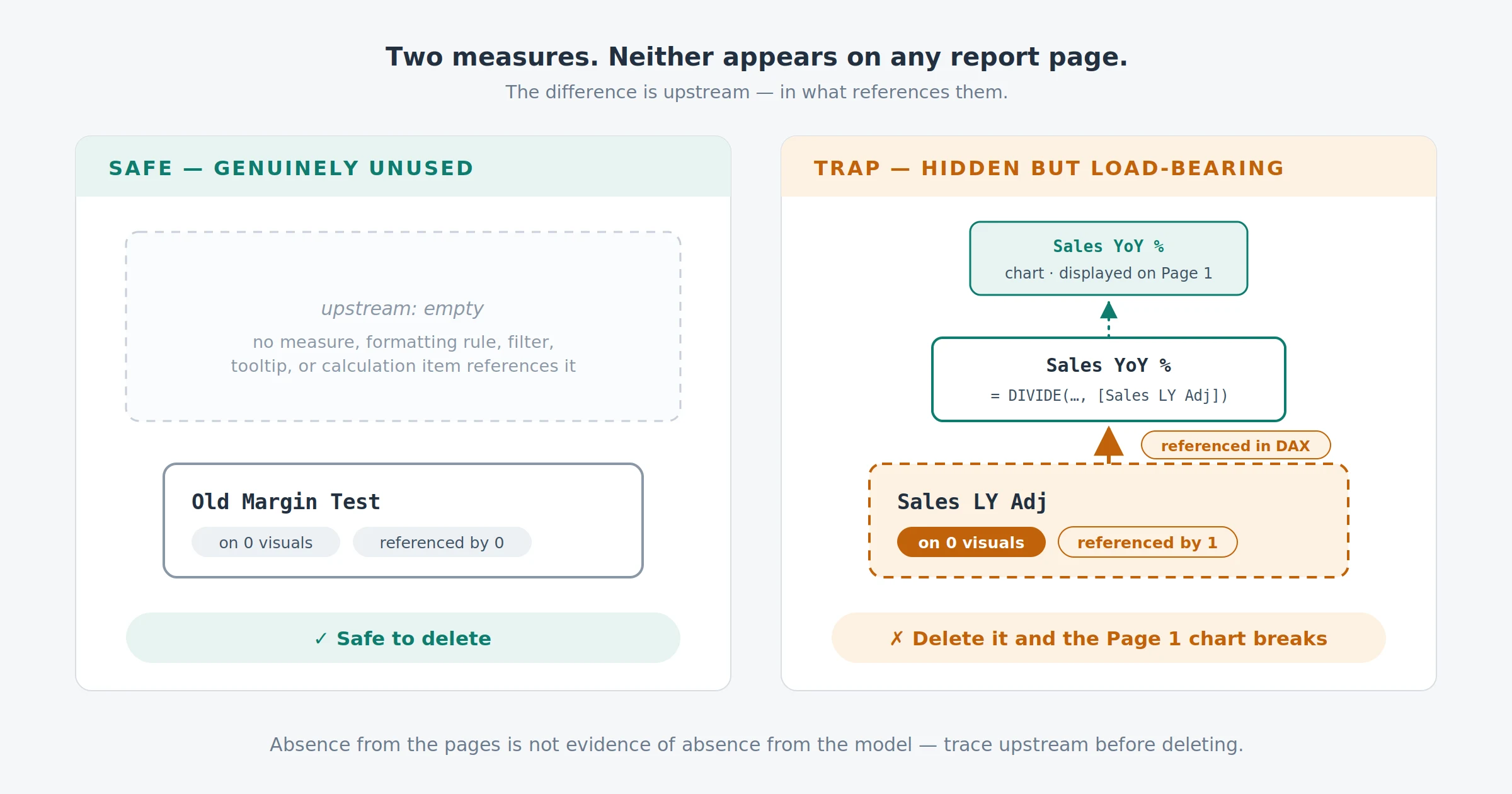
A measure is only truly unused when both are false. The report-page search you did checks the first condition and says nothing about the second. Most “but I checked everywhere” stories are a measure that failed the displayed test and passed the referenced one. A measure can be invisible yet load-bearing.
The three hiding places
If a measure looks unused but isn’t, the reference is almost always in one of three places.
1. Another measure’s DAX
The big one. Sales LY Adj isn’t on any visual, but Sales YoY % divides by it and Sales YoY % is on four pages. Delete the hidden measure and every downstream measure built on it errors, along with the visuals using them. Measure-on-measure references are completely invisible in the report view; they exist only inside DAX definitions, which is why page-by-page searching can never find them.
2. Conditional formatting rules
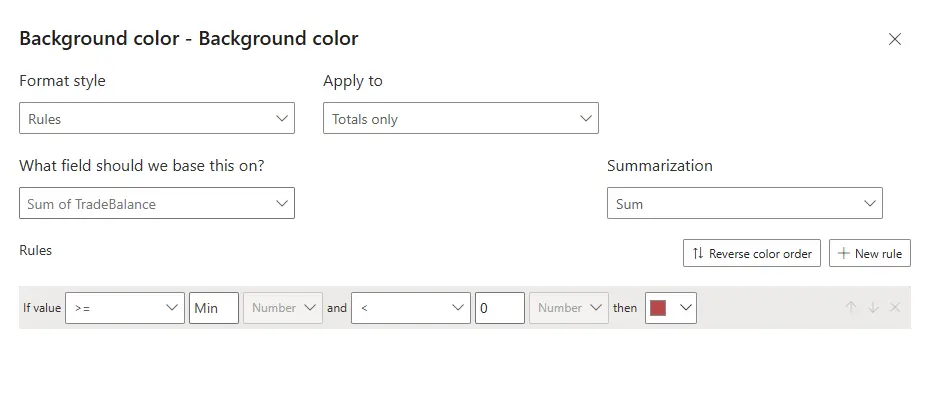
A measure can drive the background color, font color, or data bars of a visual without ever being in the visual. These references live in the formatting pane of a specific visual on a specific page — about as findable by manual search as a needle in a field of haystacks. And when the measure is deleted, the formatting often fails silently: no error, the rule just stops applying. In this image, “TradeBalance” determines the color shown in the Matrix visual.
3. Tooltips and tooltip pages
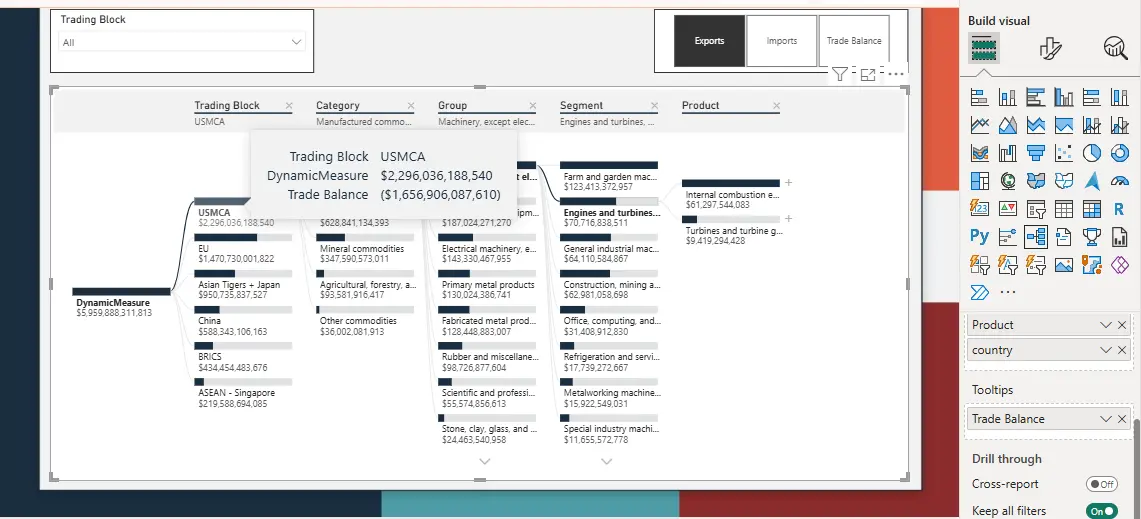
Report tooltips are full report pages, usually hidden, that appear on hover. A measure used only on a tooltip page shows up in none of your visible pages. If you’re auditing by clicking through the page tabs, hidden tooltip pages are easy to skip entirely.
Why the report-view search fails
Notice the pattern: only one of the three hiding places (tooltips, arguably) is even on a report page, and none are surfaced by scanning visuals. The references are scattered across DAX definitions and per-visual formatting config, plus hidden tooltip pages you may never open. Power BI has no native “show me everything that references this measure” view, so the manual method is to read every measure’s DAX and expand every visual’s settings. That’s hundreds of checks, where missing exactly one produces a confidently wrong conclusion.
That’s the real problem. The manual search doesn’t just take hours; it produces false negatives, and a false negative here means deleting something load-bearing.
How to check properly
The reliable question isn’t “where does this measure appear?” it’s “what references this measure?” That’s an upstream dependency question, and every answer to it is already encoded in the model: DAX definitions, visual configurations, and formatting rules. A tool can parse it and give you the answer at once.
This is what a dependency tree is for. Trace upstream from the measure and you see every object that relies on it. You see the parent measures, the formatting rules, the tooltip-page uses, all in one view (Tracing measure dependencies in DAX covers the method in full). DAX Prism builds these trees automatically, so “is anything referencing this?” becomes a ten-second check rather than an afternoon of reading DAX.
Confirmed unused: now what?
When a measure fails both tests, meaning nothing displays it and nothing references it, it’s genuinely dead weight and safe to remove. Work from a complete candidate list (how to find unused measures in Power BI), then follow a deletion process that verifies as it goes (how to safely delete measures without breaking visuals), especially if you’re removing measures in bulk.
The rule that prevents nearly every cleanup accident is one sentence: absence from the pages is not evidence of absence from the model. Check the references first.
Frequently asked questions
Is a measure that’s not on any visual safe to delete? Not on that evidence alone. It can still be referenced by another measure, a conditional formatting rule, or a hidden tooltip page. Confirm nothing references it before deleting.
How do I find hidden references to a measure? Manually: read every other measure’s DAX, expand every visual’s formatting settings, and check hidden tooltip pages. Reliably: trace the measure’s upstream dependencies with a tool that scans these references for you.
Can conditional formatting really use a measure that isn’t displayed? Yes. Formatting rules can be driven by any measure in the model, and the measure never has to appear in the visual itself. These references are among the easiest to miss and often fail silently after deletion.
Does Power BI warn you before deleting a referenced measure? No. Power BI deletes the measure immediately, and anything that referenced it breaks — downstream measures error, and formatting rules that used it simply stop working.