How to Safely Delete Measures Without Breaking Visuals
Its that time of year again, time to do your annual Power BI report clean up. You think you found a measure that’s not being used. You delete it. Three pages over, a visual breaks. This is the reason model cleanup feels dangerous, and why so many unused measures never get removed: deleting blind is genuinely risky. But deletion is safe if you verify the right things in the right order first. This guide walks through that process, from checking a single measure to cleaning up in bulk.
Why deleting a measure is risky
Power BI measures rarely stand alone. Delete one that something depends on, and several things can happen:
- Downstream measures break. Any measure that references the deleted one now errors, and so does everything built on top of those.
- Visuals error or disappear. A visual using a broken measure shows an error state or drops the field.
- Some breakage is silent. Conditional formatting, tooltips, and filters that referenced the measure can fail in ways that don’t throw an obvious error — the visual just behaves differently.
The risk isn’t deletion itself. It’s deleting without knowing what relied on the measure.
What “safe to delete” actually requires
A measure is safe to remove only when both of these are true:
- It’s not displayed anywhere: no visual, tooltip, filter, conditional formatting rule, or drillthrough uses it.
- It’s not referenced by anything: no other measure, calculated column, or calculation group depends on it.
Most deletion accidents come from checking only the first condition. A measure can be absent from every page yet still be load-bearing because another measure references it. That’s the looks-unused-but-isn’t trap. Verify both before you touch anything.
Step 1: Confirm nothing depends on it
Start by tracing upstream: what references this measure? This is the condition people miss, and it’s the one that causes cascading breakage.
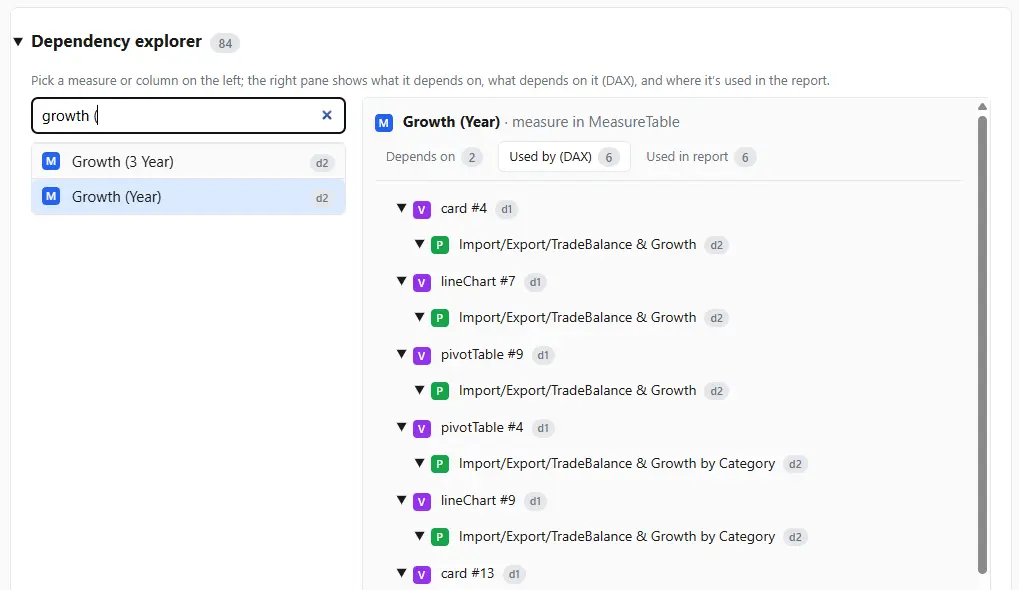
Reading every other measure’s DAX by hand to find references is slow and unreliable on a large model. A dependency tree solves this directly. A dependecy tree shows you everything that relies on a given measure at a glance. (See tracing measure dependencies in DAX for the full method.) DAX Prism builds these trees automatically, so you can confirm a measure has nothing depending on it before you delete, instead of hoping you read every definition correctly.
Step 2: Confirm it’s not on any visual
With dependencies cleared, check display usage across the whole report, not just the obvious places:
- Visuals on every page (including hidden pages).
- Tooltips and tooltip pages.
- Visual-level, page-level, and report-level filters.
- Conditional formatting rules.
- Drillthrough fields and buttons.
These last few are the easiest to overlook and the most common source of “but I checked the pages” surprises.
Step 3: Delete and verify
Once both conditions are confirmed, delete the measure and then verify rather than assume:
- Scan each page for visual error states.
- Refresh the report and confirm nothing regressed.
- If anything broke, you missed a reference — undo and re-trace.
Working on a copy, or with version control in place, means a mistake is a quick revert rather than a recovery effort.
Deleting in bulk safely
For real cleanup you’ll remove many measures at once, which adds a subtle trap: dependencies between the measures you’re deleting. If measure A is the only thing referencing measure B, B looks safe in isolation but isn’t once you also delete A. Deleting both is fine, but the order and the as-a-set check matter.
The safe approach is to evaluate the full batch of unused candidates together against the dependency graph, not one at a time. Start from your verified list of unused measures, confirm the whole set has no external references, then delete and verify as a group.
Frequently asked questions
Does deleting a measure break visuals? Only if something uses it. A measure that’s not displayed anywhere and not referenced by any other object can be deleted with no effect. The danger is deleting one that is referenced.
How do I know what uses a measure? Trace its dependencies upstream to find every measure that references it, and check all report pages, tooltips, filters, and conditional formatting for display usage. A dependency tree handles the first part automatically.
Can I undo a measure deletion in Power BI? You can undo within the same editing session. Once the file is saved and closed, recovery depends on having a backup or version history, which is a good reason to version-control your model.
How do I delete many unused measures at once safely? Evaluate the whole batch against the dependency graph together, not individually, so you account for references between the measures you’re removing. See how to find unused measures.
What’s the safest overall workflow? Find unused candidates, confirm each is unreferenced via its dependency tree, confirm it’s not displayed anywhere, then delete and verify. Again, having version control in place makes it so any mistake is a quick revert.