Power BI Data Dictionary Generator: Options Compared
Your Power BI reports should probably have a data dictionary. If not for your stakeholders that want more than access to the App Space, then for the team of Power BI developers. A Data Dictionary is reference list of the model’s tables, columns, and measures with their definitions. It’s the subset of full documentation people ask for by name, because it’s the part they interact with: the field they’re about to drag onto a visual, and what it actually represents.
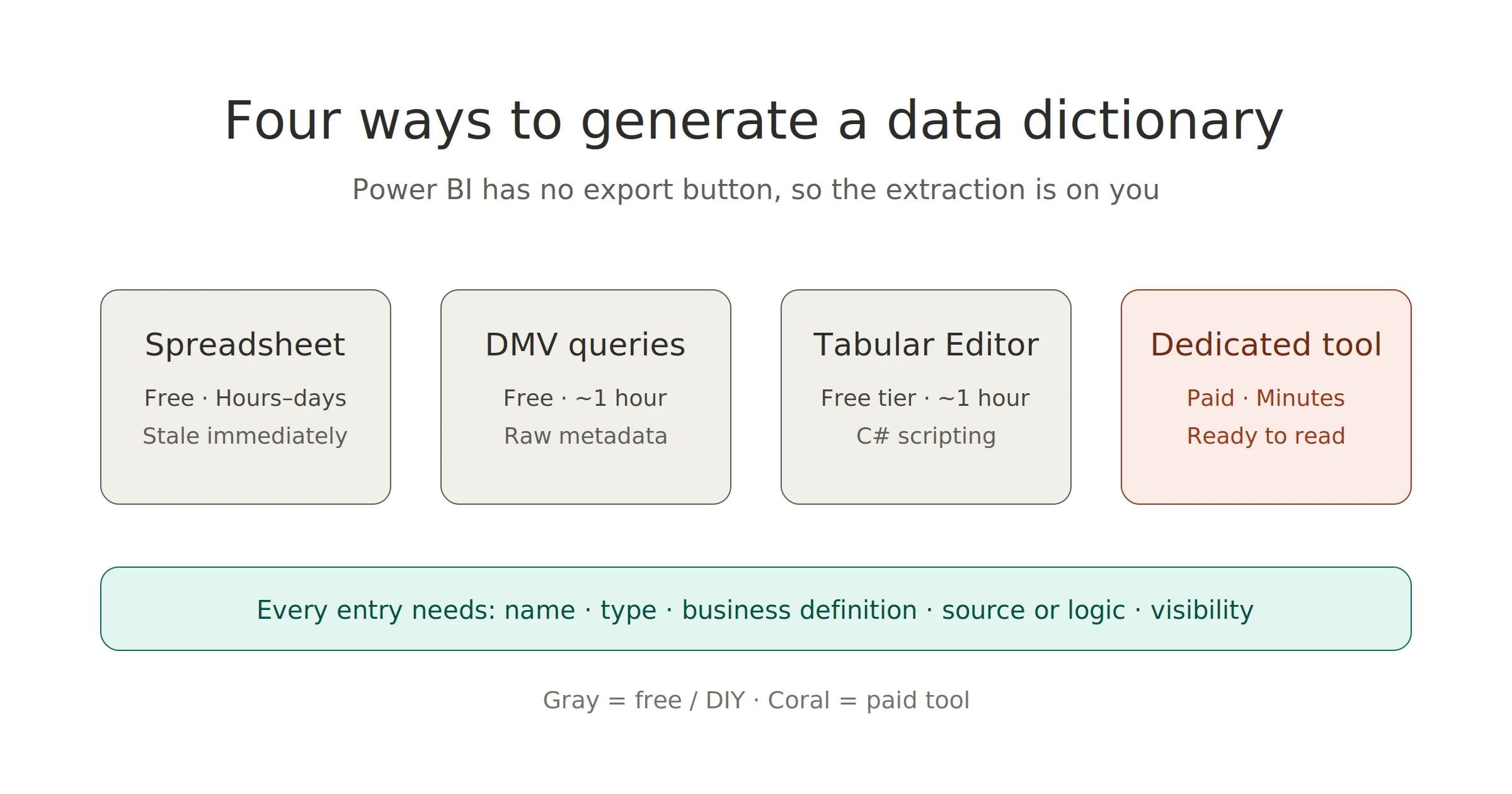
Power BI has no export button for this. So the real question is which generation method to use, and there are four with genuinely different trade-offs. Here’s the honest comparison.
What a good dictionary contains
Criteria first, so the options have something to be measured against. A dictionary entry worth reading has:
- Name and object type — table, column, or measure.
- Data type and format — text, decimal, the display format users will see.
- A business definition — what the field means, in plain language. The entire point, and the part no tool can fully supply.
- Source or logic — where a column comes from; what a measure calculates (its DAX, or better, a readable summary of it).
- Visibility — hidden helpers matter to maintainers even though users never see them.
Two more properties separate a useful dictionary from a dead one: completeness (missing entries erode trust in all of them) and contemporaneousness (a dictionary is only trusted while it matches the model). Keep those five columns and two properties in mind; they’re the scorecard.
Option 1: The manual spreadsheet
Open the model, walk the field list, type rows into Excel.
For it: zero tooling, zero learning curve, total control over format, and writing each entry forces you to actually confront what every field means — there’s real understanding built as a side effect.
Against it: hours of transcription for any model of size; no dependency or lineage information (transcribing DAX by hand is where this method goes to die); and staleness begins immediately — every model change now requires a parallel manual edit that will, eventually, be skipped. The spreadsheet is honest work that decays.
Verdict: fine for a small, stable model you own alone. The method’s real cost isn’t the first draft; it’s every month after.
Option 2: DMV / INFO queries via DAX Studio
The model’s metadata is queryable. Dynamic Management Views and the INFO functions in DAX return the raw inventory: every table, column, measure, relationship, and property, extractable through DAX Studio or even a query in Desktop itself.
For it: free, complete, and live. The output is the model’s actual current state, so re-running it solves staleness for the structural columns. For a technically comfortable user, it’s twenty minutes to a full raw inventory.
Against it: the output is metadata, not a document. Column after column of internal properties that need filtering, joining, and formatting before a business user could read them. There are no business definitions, no readable summaries of measure logic, and the assembly work (queries → cleanup → presentable format) is a small recurring project you now own.
Verdict: the right free answer for a technical user who wants raw completeness and doesn’t mind building the readable layer themselves.
Option 3: Tabular Editor scripting
Tabular Editor exposes the whole model object tree to C# scripts, so you can script an export of exactly the dictionary you want — and the community has shared many such scripts.
For it: free (in the free tier), endlessly customizable, and re-runnable. What’s nice is that the same script produces a current dictionary on demand. If your team already lives in Tabular Editor, the marginal cost is low.
Against it: it’s a scripting solution, with everything that implies. You need comfort with C# snippets, maintaining the script as needs evolve, and output that’s exactly as good as the script you wrote or found. Business definitions still have to come from somewhere (the Description property, if your team fills it in).
Verdict: the power-user option. Best where a BI team has real tooling skills and wants control without a purchase.
Option 4: Dedicated documentation tools
Tools built for this (tools like DAX Prism) read the model file and generate the readable artifact directly: tables, columns, and measures with their definitions, measure logic in readable form, and the dependency information none of the other options capture.
For it: Seconds to a complete, formatted, human-readable dictionary; re-run on demand so currency is a non-issue and the structural columns come filled for easy navigation.
Against it: it’s a paid tool, and the output is the tool’s format rather than your bespoke design. Business definitions still benefit from human enrichment (which DAX Prism prompts during Data Dictionary export) while automation fills the structure.
Verdict: earns its keep the moment the dictionary is recurring rather than one-off. Necessary during handoffs, growing models, or when a dictionary is only one artifact of larger documentation.
The comparison at a glance
| Manual spreadsheet | DMV / INFO queries | Tabular Editor script | Dedicated tool | |
|---|---|---|---|---|
| Cost | Free | Free | Free tier | Paid |
| Time to first dictionary | Hours–days | ~1 hour + cleanup | ~1 hour if scripted | Minutes |
| Readable without rework | Yes (you wrote it) | No | Depends on script | Yes |
| Dependencies captured | No | Raw only | Scriptable | Yes |
| Stays current | Manual discipline | Re-query (raw) | Re-run script | Re-run |
| Skill required | None | DAX Studio basics | C# scripting | None |
Which to pick
- One-off dictionary for a small model: the spreadsheet. Don’t over-tool a ten-table model.
- Technical user, zero budget: DMV/INFO queries if you want raw truth fast; Tabular Editor if you want a repeatable script and have the skills.
- Recurring need, handoffs, or a dictionary that’s part of real documentation: a dedicated tool. The economics flip as soon as “generate it again” becomes a monthly sentence.
One framing worth keeping regardless of method: the dictionary is a subset of full documentation. The reference-list layer of a larger artifact that also covers relationships, transformations, and design reasoning. Whatever generates your dictionary should feed that larger process, not substitute for it; documenting a Power BI data model covers the whole. And the query-side context a dictionary can’t hold — what the data went through on the way in — is its own translation problem, covered in translating M to plain English.
Frequently asked questions
Can Power BI export a data dictionary natively? No. There’s no built-in export of tables, columns, and measures with definitions. The metadata is all present in the model, which is why every option above works by extracting it, but the extraction is on you.
What’s the difference between a data dictionary and documentation? The dictionary is the reference list of fields and their definitions, and is only part of the full documentation. Full documentation also covers relationships, Power Query transformations, security, and design reasoning.
Can business definitions be auto-generated? Partially. Tools can fill every structural column like names, types, sources, measure logic, dependencies and produce readable summaries of what a measure computes. What a field means to the business is human knowledge; the practical workflow is automation for structure, people for meaning.